
Shield Guard

Shield Guard is a cloud-based, online, device fleet security service that enables organizations to remotely monitor and manage the security status of one or more devices, strengthening control over device security. With Shield Guard, you no longer need to physically access your devices to monitor their security. Instead, Shield Guard’s online service enables you to simultaneously monitor and manage all the devices in your fleet - remotely, via the cloud.
Shield Guard is fully integrated with MarketPlace, and is available to purchase and install from the MarketPlace website. For information on Shield Guard plans, access the Shield Guard Home page and click on the CHOOSE YOUR PLAN button.
Note: This Online Help website describes all available Shield Guard features (that is, the features in the Shield Guard Enterprise license plan). If your Shield Guard plan does not include all features, the Help may describe features not available to you.
The following illustration shows the Devices page from the Shield Guard Portal, listing several devices in a sample Shield Guard license plan (the Enterprise plan).
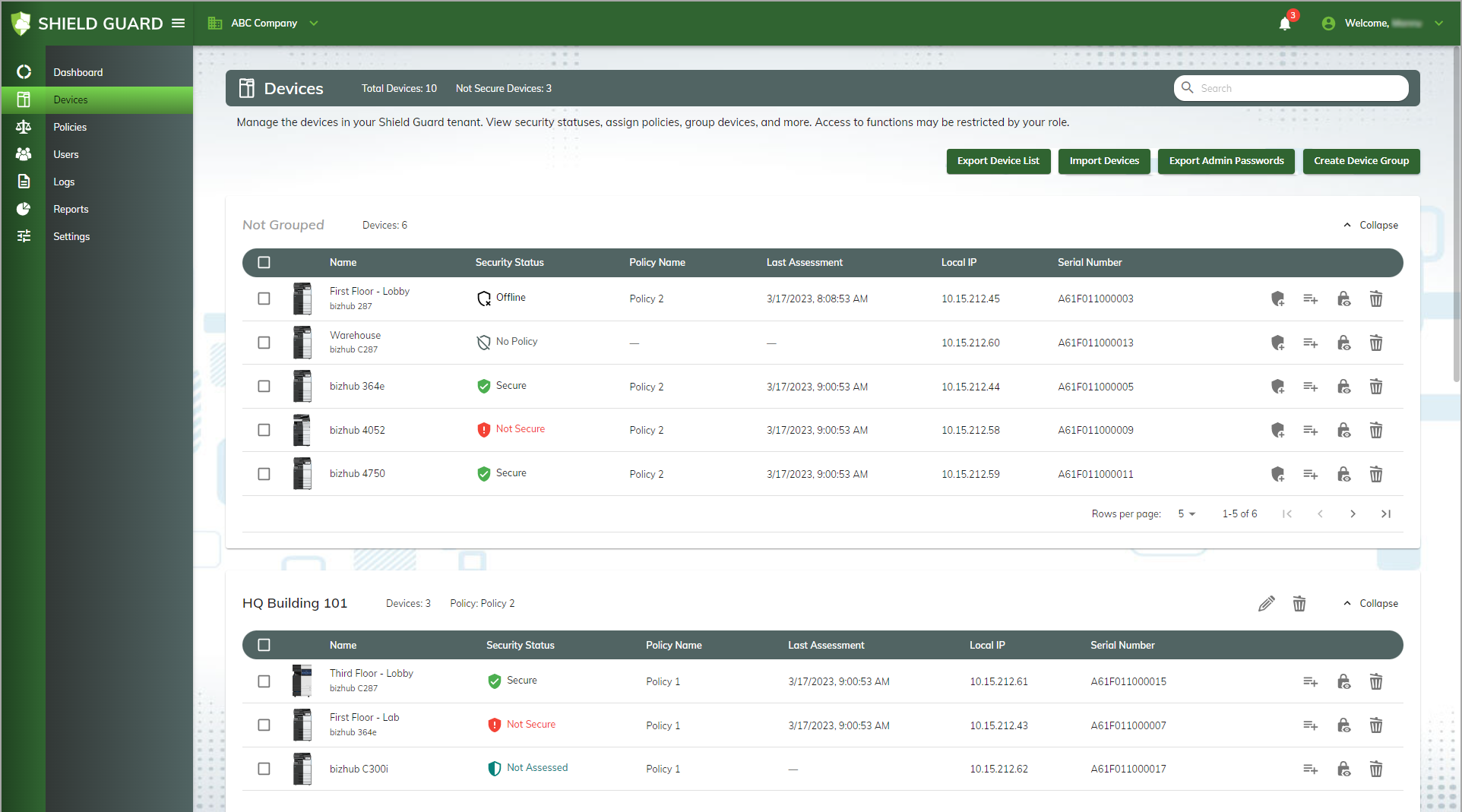
Note the following:
-
The Title bar indicates the current tenant is the ABC Company.
-
The Navigation pane on the left shows the pages available in the Admin area.
-
The Information bar indicates the tenant contains a total of ten devices, three of which are currently assessed as Not Secure.
-
Six of the devices belong to the Not Grouped table, indicating that currently they are not part of any device group. Five are visible in the illustration. The sixth device could be viewed by viewing the next page in the table (by clicking on the right arrowhead on the table footer).
-
Three of the devices appear in the HQ Building 101 device group table, indicating that currently they are part of that device group.
-
One device does not appear due to space limitations in the illustration.
-
About Shield Guard
Shield Guard monitors the security policy settings of supported Konica Minolta MFPs (multi-function peripheral devices) and SFPs (single-function peripheral devices). Shield Guard consists of the following components:
-
Shield Guard Service - An online platform that enables users to remotely monitor the security settings of any device on which the Shield Guard Agent is installed. The online platform is known as the Shield Guard Portal. The website address is:
Anyone with a MarketPlace account can access the portal to view purchasing options. Members of a Shield Guard tenant can access additional areas of the portal based on their assigned role(s) in the group.
-
Shield Guard Agent - Once installed on a device and then launched, the Shield Guard Agent communicates with the Shield Guard Portal at user-defined intervals. The agent:
a. Receives and stores security policy settings from the Shield Guard Portal.
b. Compares the configuration of the device’s security settings with the configuration of the corresponding settings in the policy.
c. Reports any device settings that do not comply with the policy, and/or any policy settings that were changed since the last heartbeat sync, back to the portal as part of the agent’s device check.
Thus, the agent and the portal communicate regularly. If all settings match, the portal assesses the device as Secure. If one or more settings do not match, the portal assesses the device as Not Secure.
Monitoring the Security of Devices in a Tenant
After each policy assessment, the portal updates the current security statuses of the devices in the tenant and displays the information in several areas of the portal, including the following:
-
Dashboard page - Displays an at-a-glance overview of the tenant’s device security.
-
Devices page - Displays the security status of each device in the tenant.
-
Logs page - Displays detailed information on security logs recorded by Shield Guard, including any individual settings that failed a policy assessment.
Elements of a Shield Guard Tenant
Use of Shield Guard requires the purchase of the following:
-
A Shield Guard Service license plan - At the time of purchase, you must also specify a billing method.
-
One or more device licenses - one for each device you want to monitor.
-
The free Shield Guard agent - one for each device you want to monitor.
The purchase of the service creates a tenant for the plan. The following sections provide overviews of the main elements of a tenant.
Licenses
Shield Guard is licensed by device (not, for example, by user). Once you purchase a license plan, you can add devices to the tenant created by the purchase. To add a device to a tenant, the following must be true:
-
The Shield Guard Agent must be currently installed on the device (in order for MarketPlace, and the Shield Guard Portal, to connect to the device).
-
A device license must be available in the tenant.
You can purchase device licenses as part of your purchase of a license plan, and/or you can purchase device licenses for an existing tenant at any time. The number of device licenses you purchase determines the maximum number of devices you can add to the group. Note that you can also remove devices from a tenant to make their licenses available for assignment to other devices.
The purchaser of the Shield Guard Service (that is, a license plan) becomes the owner of the tenant and has full access to the portal, including the Users page via which other users can be invited to join the group. Users invited to join the group do not need to purchase a license plan.
Users
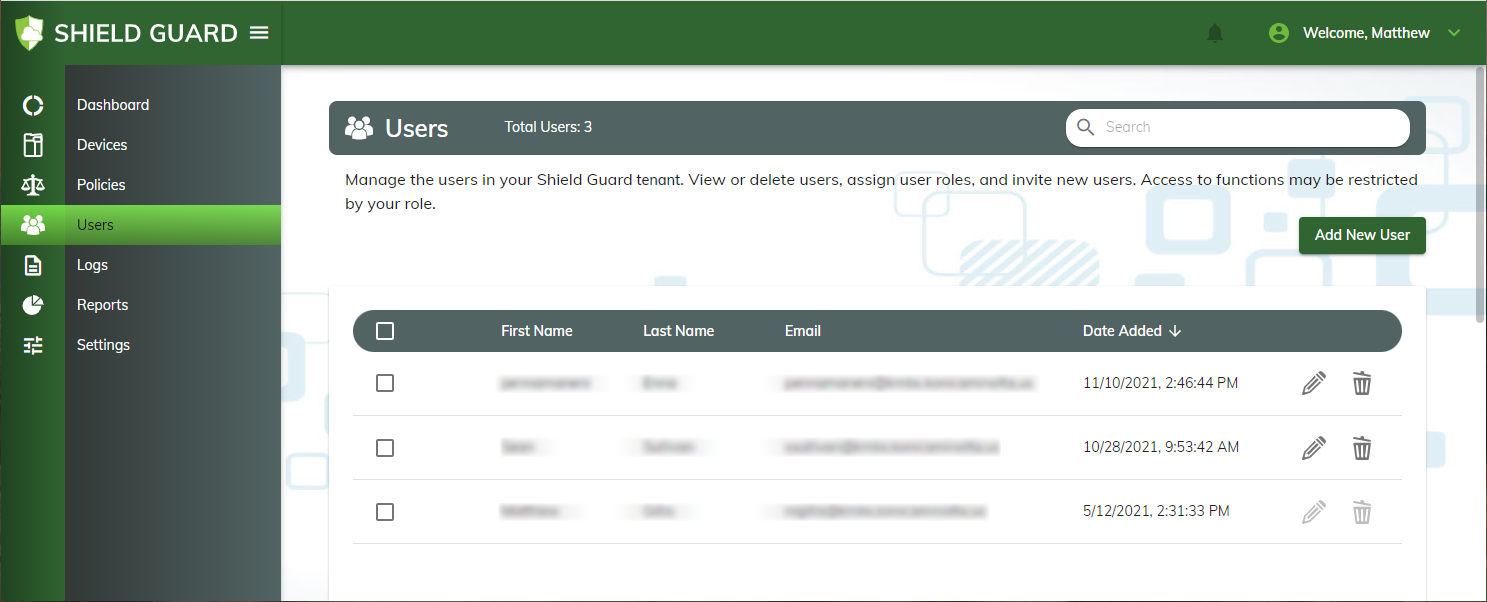
Shield Guard tenants can contain an unlimited number of users. The purchaser of the license plan (the group owner) can invite others to join the group. Each invitation includes a role assignment within the tenant for the invitee. Roles determine the pages of the Shield Guard Portal a member can access. For example, only tenant members with access to the Users page can invite others to join the group. The following illustration shows the Users page.
Password Vaults
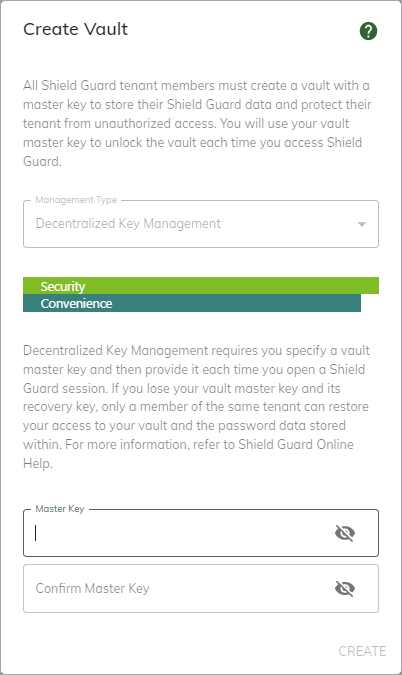
In addition to roles, Shield Guard restricts user access to pages in the portal by means of password vaults. Shield Guard requires each tenant member to create their own password vault in which to store their sensitive data. The Create Vault window appears automatically for this purpose. Thereafter, in each Shield Guard session, tenant members must first unlock their vault before accessing any vault-protected pages in the portal. The Unlock Vault window appears automatically for this purpose.
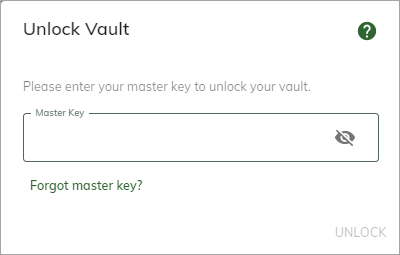
Note: The Unlock Vault window appears only for tenant members using the Decentralized method for vault key management. For tenant members using the Centralized method, Shield Guard unlocks the vault automatically.
Devices
Shield Guard supports all MarketPlace devices. To monitor devices in Shield Guard, you must add them to a tenant. To add a device to a tenant, the Shield Guard Agent must be installed on the device and an unassigned device license must be available in the group. Once added to a tenant, you can assign a security policy to the device and device monitoring can begin.
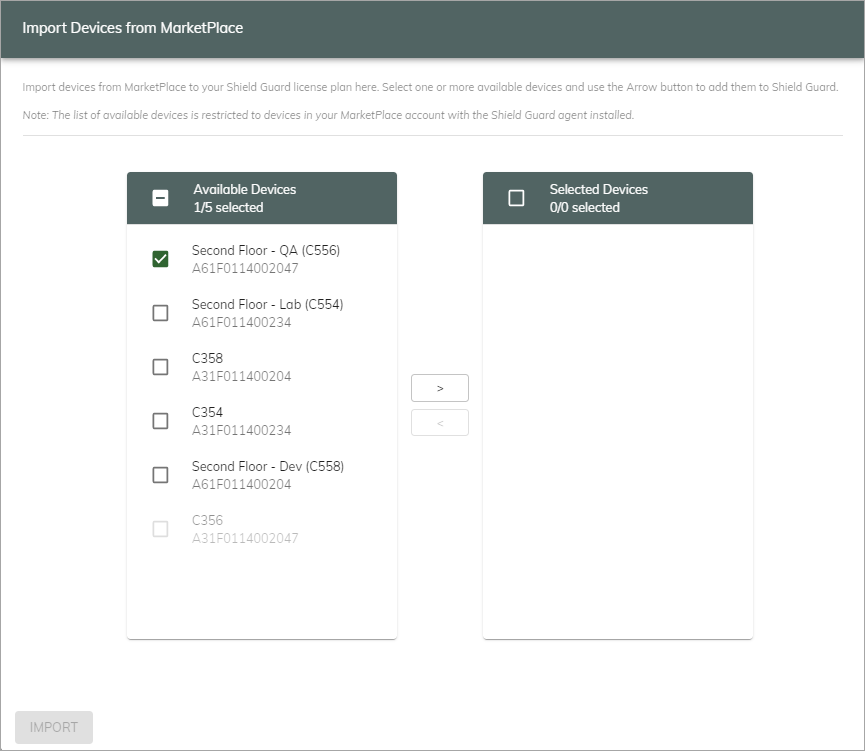
Note: Devices can belong to only one tenant at a time.
Policies
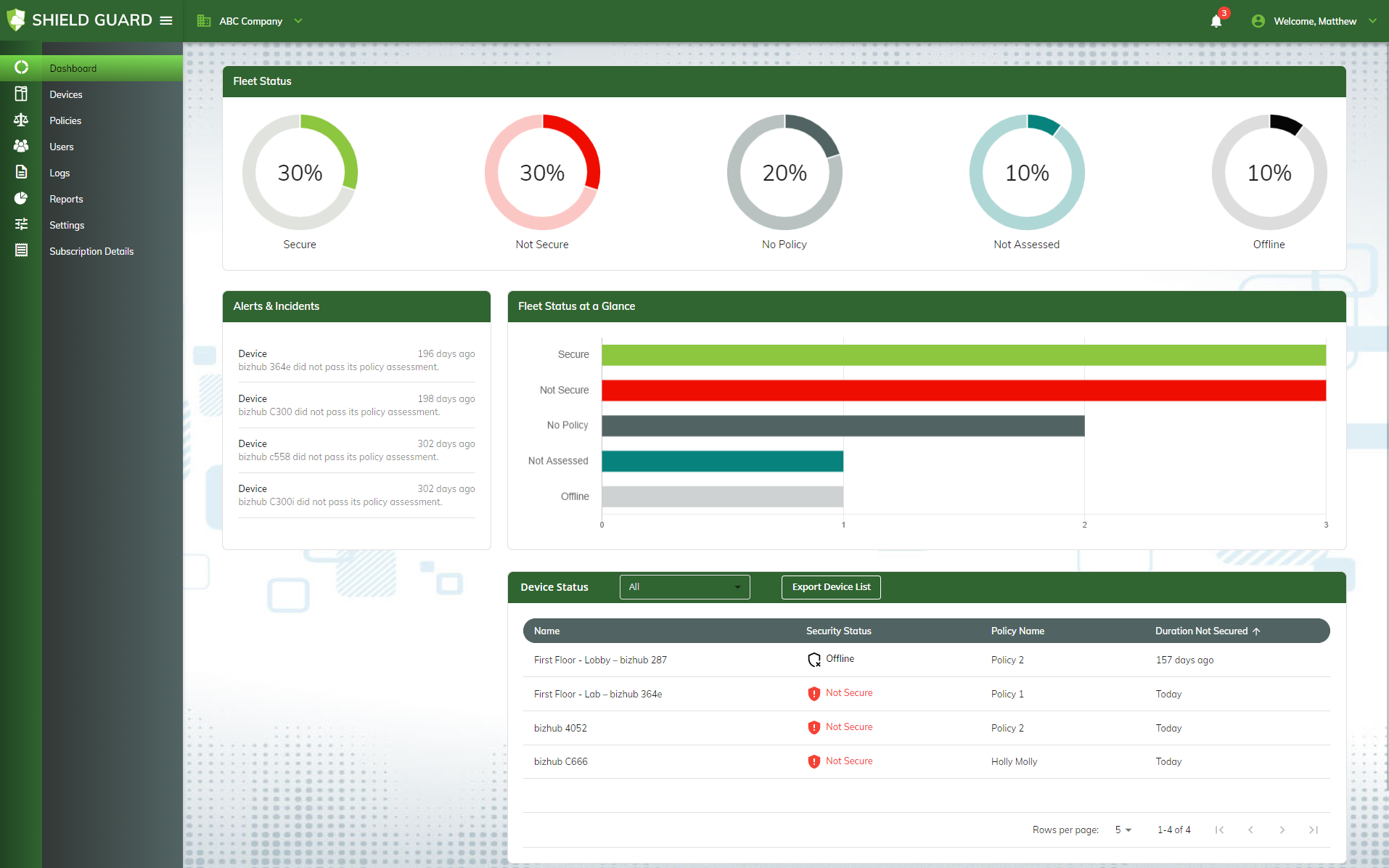
Shield Guard supports device security settings protected by bizhub Standard, Platinum, and Ultimate. You can create as many security policies as you like. For each policy, you toggle on the Shield Guard security settings you want to monitor on a group of devices, then assign the policy to the devices. For each setting toggled on in the policy, Shield Guard monitors the corresponding device setting at a user-defined interval (for example, every hour). If non-compliant settings are found on a device, the Shield Guard Portal updates with the information to alert tenant members so corrective action can be taken. The following illustration shows the Dashboard page, providing an overview of the security statuses of devices in a tenant and indicating that several are currently assessed as Not Secure:
Automatic Remediation
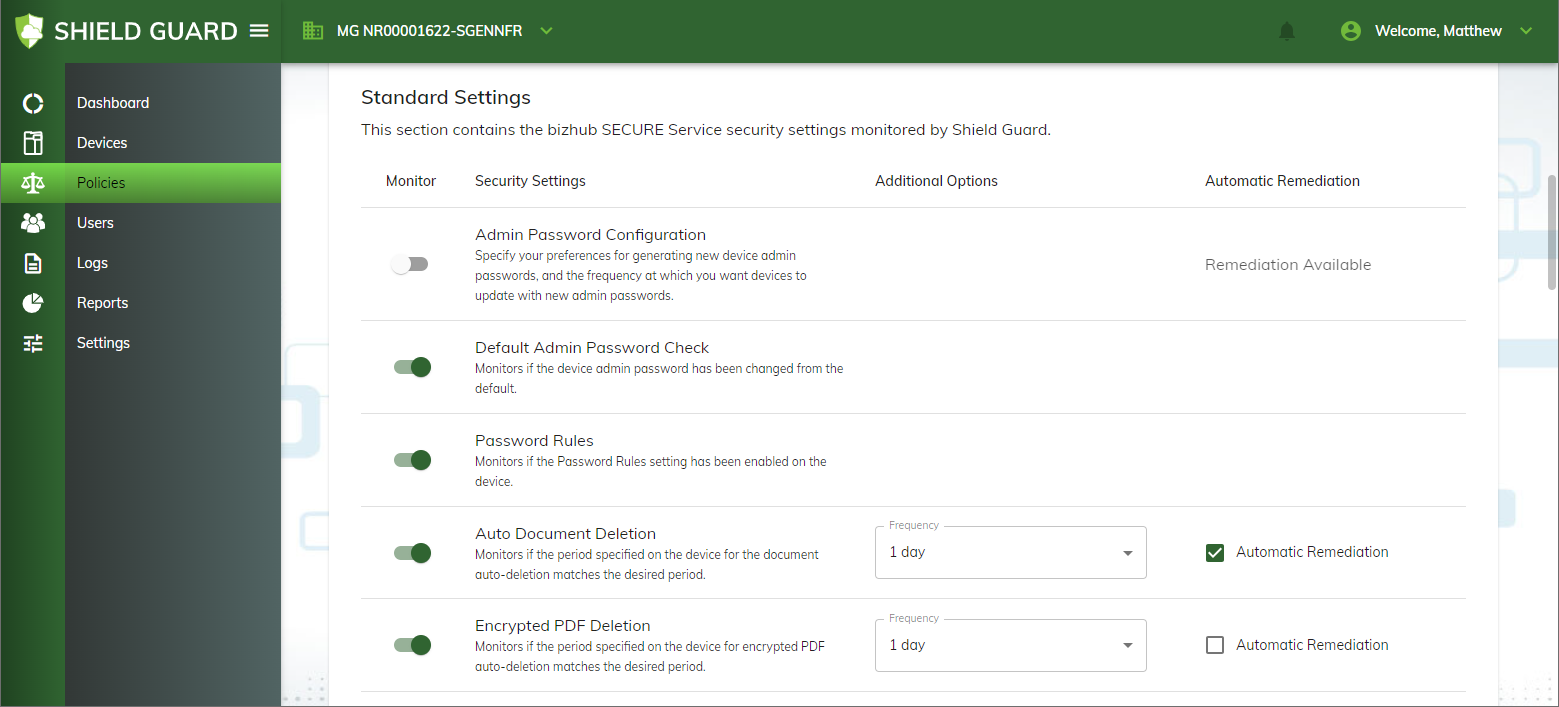
Many Shield Guard policy settings include an option to automatically remediate the device’s corresponding setting if in a non-compliant state. Shield Guard will automatically modify the device setting to match the policy setting. If automatic remediation is not active for a setting, or the setting does not support automatic remediation, the setting must be changed manually, at the device, to return it to a compliant state.
The following illustration shows the Policies page. The Automatic Remediation column indicates the policy settings that support automatic remediation. In this illustration, automatic remediation is enabled for the Auto Document Deletion setting:
Policy Settings and Communication Frequency
For each policy, you select the device settings you want to monitor. In addition, you specify the frequencies at which:
-
The Shield Guard Agent communicates with the Shield Guard Portal to update the agent with any changes made to the policy. This is called the “server heartbeat sync frequency”.
-
The Shield Guard Agent performs a device check, comparing the current statuses of the device settings monitored by the assigned policy to the configurations of the settings in the policy. This is called the “Check MFP local settings frequency”.
-
The Shield Guard Portal assigns the status of “Offline” to a device because the agent has not communicated with it within a specified amount of time. This is called the “Offline threshold”.

Note: The Shield Guard Agent runs only when the Shield Guard screensaver is running on the device.
A Sample Custom Security Policy
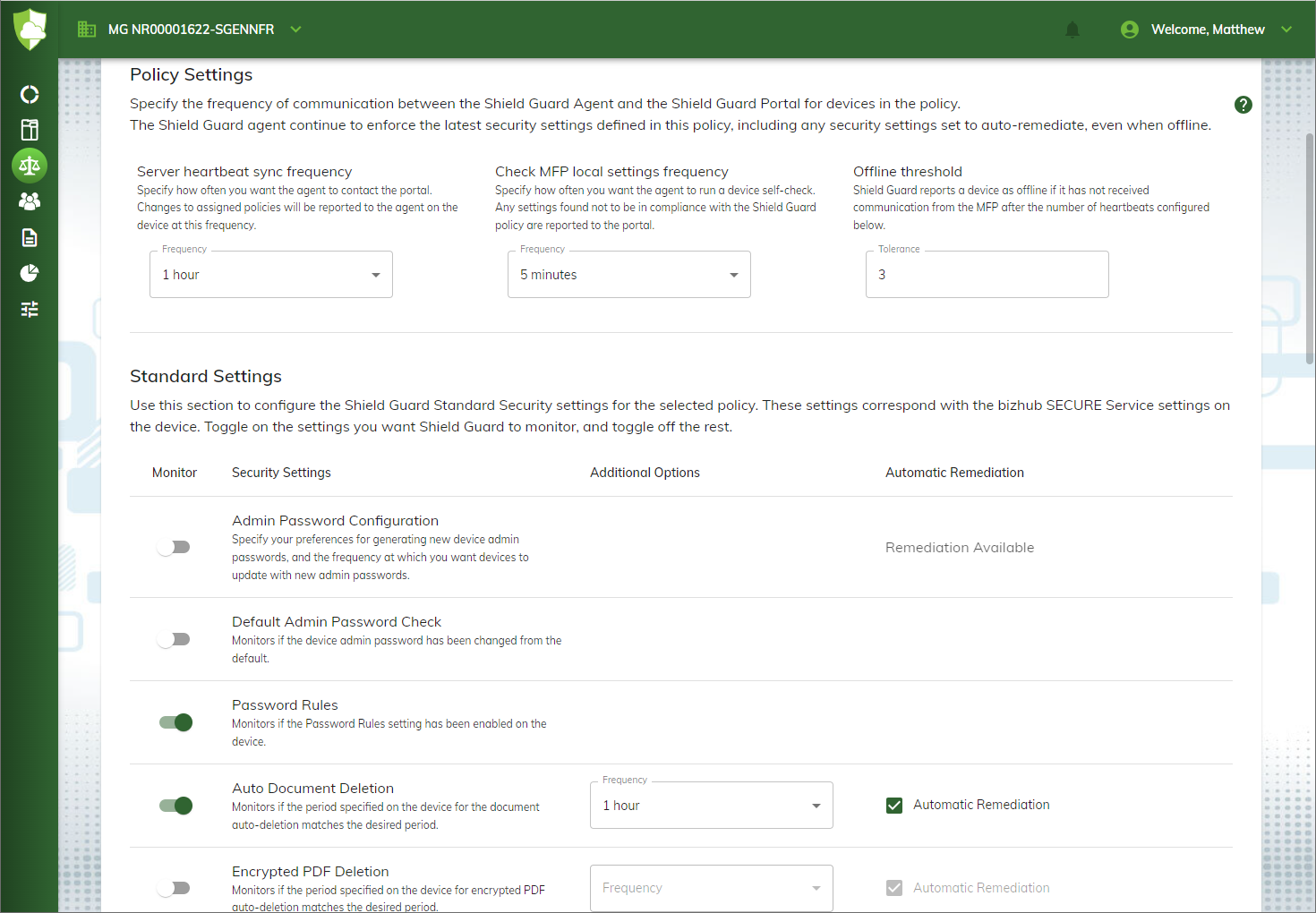
The following is a policy scenario outlining the basic steps Shield Guard performs when monitoring and maintaining security for devices assigned to a security policy. The scenario describes a typical communication frequency configuration between portal and device. Two settings are toggled on, including one with automatic remediation active.
Assume the following scenario for a Shield Guard policy:
-
The Server Heartbeat Sync Frequency is set to one hour.
-
The Check MFP Local Settings Frequency is set to five minutes.
-
The Password Rules setting is toggled on.
-
The Auto Document Deletion setting is toggled on, with the deletion frequency set to one hour and the Automatic Remediation option enabled.
-
All other policy settings are toggled off.
In this scenario, the following occurs:
-
Every hour, the agent pings the portal. If any of the policy’s settings on the portal have been modified since the last heartbeat sync, the agent updates with the new settings.
-
Every five minutes, the agent performs a device check of the device’s security settings. As part of the device check, the agent:
a. References the policy settings acquired in the most recent heartbeat sync, checking only the settings that are toggled on in the policy.
b. Performs automatic remediation on any device settings for which:
-
Automatic remediation is enabled in the policy.
-
The device setting is not compliant with the policy setting.
Note: The device must also support the Automatic Remediation feature.
c. Searches for any device settings that have changed (whether manually at the device or through automatic remediation) since the last device check. If any device settings have changed, the agent reports to the portal the current status of all device settings monitored by the policy.
-
-
The portal performs an assessment of the security policy. If any device settings are not compliant with the policy settings, Shield Guard assesses the policy as Not Secure.
Note: If the device check finds no changes to the device settings, the agent does not report to the portal and no policy assessment is made.
-
If, after 3 heartbeat syncs (the 3 being specified at the Tolerance field), the agent has not communicated with the portal, the portal assumes the device is asleep or powered off, and assigns the device a status of Offline.
Further assume that the agent found the device’s Password Rules setting to be enabled and thus in compliance with the security policy. However, the agent found the device’s Auto Document Deletion setting to be enabled but set to a deletion frequency of one day (24 hours). As a result:
-
The Auto Document Deletion setting on the device is not compliant with the policy setting.
-
The agent automatically remediates the device setting to match the policy setting of 1 hour. Because one or more device settings were changed, the agent reports the change to the portal and the portal performs an assessment of the policy. Because the agent remediated the device setting to match the policy setting, Shield Guard assesses the setting as compliant and the device as Secure.
-
However, if automatic remediation did not occur (for example, the device does not support automatic remediation), the agent would report to the portal that the device setting is not compliant with the policy and the portal would then assess the device as Not Secure.